HR and legal teams
Employee records, contracts, due-diligence files, and merger documents may require stronger separation than ordinary shared-drive permissions can provide.
Business file sharing creates security concerns that ordinary sync settings do not fully solve. This guide explains how to restrict OneDrive for Business folders, manage SharePoint access, and add client-side encryption before sensitive data reaches Microsoft’s cloud.
There is no universal “password-protect this folder” control built into OneDrive for Business. In practice, you protect a business folder by limiting SharePoint/OneDrive access to named people, applying organization-managed information protection such as sensitivity or rights controls, or encrypting the data on the device before OneDrive uploads it.
People searching for a way to “lock” a OneDrive folder often encounter instructions that mix two different services: consumer OneDrive and OneDrive for Business. The business service is tied closely to SharePoint and Microsoft 365 administration, so its security model centers on organizational permissions rather than a simple personal folder password.
Microsoft encrypts OneDrive data while it is stored on its infrastructure, but the service still manages the encryption keys. That means access mistakes remain important. A compromised administrator account, an overly broad sharing rule, or a synced copy left open on a device can still expose information even though the cloud platform itself uses encryption.

Employee records, contracts, due-diligence files, and merger documents may require stronger separation than ordinary shared-drive permissions can provide.
When work data is synchronized to a personal or mobile computer, local protection helps prevent other device users or a thief from opening company files.
The standard business approach is to tighten access through OneDrive and SharePoint sharing controls. This restricts who can reach the folder in the cloud, although it does not automatically encrypt an already-synced copy on the local hard drive with a separate password.

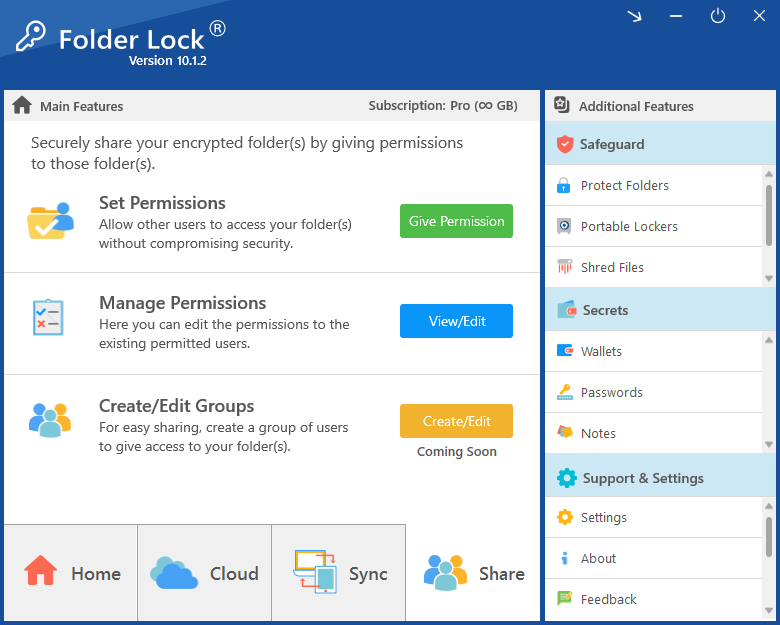
Important limitation: access rules are not the same thing as client-side encryption. If someone can use the Windows account where a synced copy is already available, those local files can remain readable unless you add device- or file-level protection.
Organizations with appropriate Microsoft 365 licensing and administration can apply information-protection policies to sensitive documents. For example, an administrator may configure labels for confidential material so that a user must authenticate before protected content can be opened, even after a document has been copied elsewhere.
This approach is powerful for centrally governed compliance, but it is typically controlled by IT or security administrators. It therefore may be less convenient when an individual user simply wants to lock one folder immediately without waiting for a policy change.
If the goal is to keep the cloud provider and local administrators from seeing readable file contents, the strongest separation comes from client-side encryption. Encryption happens on your computer first, and OneDrive receives the protected data rather than the original readable files.

A dedicated security application can place selected files inside an encrypted container before synchronization. The copy stored in OneDrive is then an encrypted vault or container rather than an ordinary readable folder.
Choose the type of information you store and the way the folder is shared. This simple guide highlights when a stricter protection layer may be appropriate.

| Method | Protection type | Protects local PC copy | Designed to prevent admin access? | Setup difficulty |
|---|---|---|---|---|
| OneDrive native sharing | Access-control rules | No — local synced files can remain open | No | Low |
| Microsoft 365 sensitivity / rights controls | Policy-managed protection | Yes, when policy applies | No — organization controls the policy and keys | High / IT-managed |
| Password-protected ZIP / 7z archive | Password-based encryption | Yes | Yes, if the password is kept private | Medium |
| Dedicated encryption software | AES-256 client-side encryption | Yes | Yes, for user-controlled encrypted vaults | Low to medium |

OneDrive permissions are useful for collaboration, but they do not by themselves create a separate encrypted lock around the copy stored on your computer. For information that needs stronger separation, encrypting the files before synchronization adds protection on both the device and the cloud copy.
Folder Lock supports encrypted storage on Windows and is also available for Apple Mac. Independent coverage of Folder Lock describes its use for protecting data before cloud synchronization.

Cloud storage is designed first for access and synchronization. A dedicated folder-locking application can add controls that ordinary OneDrive synchronization does not provide.
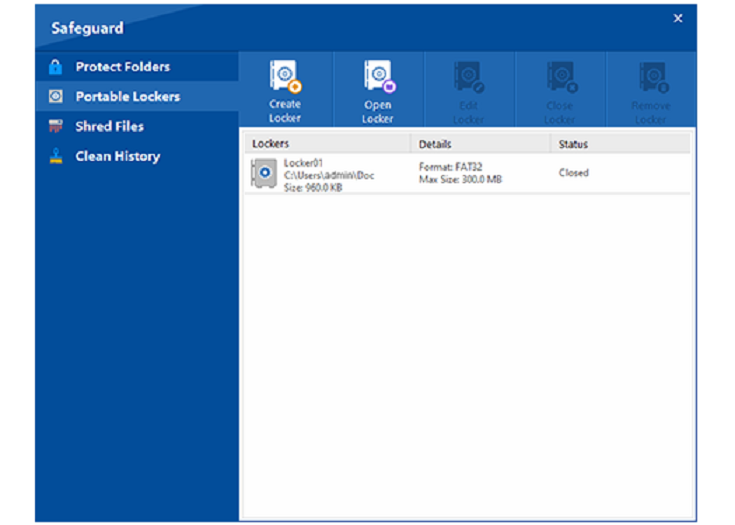
Instead of rebuilding a password-protected archive every time a file changes, Folder Lock can provide a virtual encrypted workspace. When the locker is open, files can be edited normally; when it is locked, the stored information is protected using AES-256 encryption.
Protected data can be kept in encrypted locker/container files that OneDrive synchronizes like other files. This lets the cloud service transport and back up the encrypted container without needing to read the documents inside it.
A synced folder is only as private as the device account that can open it. If a laptop is stolen or another person gains access to the operating-system profile, a separate encrypted vault helps prevent those locally synchronized documents from being readable.
Cloud storage is useful because files move between devices. When encrypted containers are synchronized to cloud storage, supported companion applications can provide access from additional devices without turning the cloud copy back into an ordinary unprotected folder.
Moving a sensitive document into an encrypted vault does not automatically eliminate every recoverable trace of the unencrypted original. Folder Lock includes file-shredding functionality intended to permanently remove source files after they have been secured.

If you notice a hidden filename beginning with .~lock beside an Excel workbook, it usually represents a temporary editing lock rather than encryption. Microsoft Office creates these files so that two people do not overwrite the same document at the same time. If OneDrive reports that a file is locked for shared use, another collaborator may still have it open.
OneDrive consumer accounts can use Personal Vault, which adds an extra identity-verification step to a protected area. Business accounts instead rely on Microsoft 365 and SharePoint controls, so organizations that want an independent user-controlled encryption key often add client-side protection.

Likely cause: someone else still has the file open, or an earlier Office session did not release the editing lock cleanly.
What to try: ask the last editor to close the Office application completely, or allow time for the stale lock to clear.
Likely cause: the desktop client may still be holding outdated sign-in credentials.
What to try: open OneDrive settings, review the account connection, unlink the PC if necessary, and sign in again with the updated credentials.
Likely cause: the password or key for the encrypted locker is unavailable.
What to know: strong encryption is deliberately designed so the encrypted content cannot simply be decoded without the correct key. Keep recovery credentials and passwords in a secure place.
Likely cause: the folder may have permissions that differ from the folder above it.
What to try: review Manage access and advanced permission settings and, if appropriate for your organization, restore inherited permissions.
Basic archive passwords can be useful, but dedicated encryption software is designed to make routine editing and cloud synchronization easier without repeatedly compressing and extracting files.
Use the trial to test the OneDrive encryption workflow.
The complete security suite for users who need the additional features.

“For client work covered by confidentiality agreements, I keep sensitive directories encrypted before the OneDrive sync process begins. That gives me a clear separation between ordinary collaboration files and material that needs stronger protection.”
“After discovering that a SharePoint link had been shared more broadly than intended, our team tightened cloud permissions and added local encryption for the most sensitive HR folders used by remote staff.”
There is no universal native password field for the folder itself. You can narrow SharePoint/OneDrive permissions, use organization-managed information-protection policies, or encrypt the folder locally before it is synchronized.
Not as a separate password applied directly to the folder in the same way as an encrypted archive. Some sharing-link scenarios can use additional access controls, while true folder encryption requires another protection layer.
Personal Vault is intended for consumer OneDrive accounts and adds extra identity verification around a protected area. OneDrive for Business is managed through Microsoft 365 and SharePoint security and compliance controls instead.
A standard synchronized OneDrive folder does not automatically lock itself merely because it is in OneDrive. If the signed-in device account can access the folder, the synchronized files are normally available to that user.
These capabilities are generally enabled and governed by Microsoft 365 administrators through SharePoint and Microsoft information-protection settings. Users can then apply the controls allowed by the organization’s policy and licensing.
OneDrive protects information in transit and at rest. If your requirement is that only you hold the key that can decrypt a particular set of files, add client-side encryption before those files are uploaded.
Sharing controls are essential, but they solve a different problem from user-controlled encryption. A practical security model combines tightly scoped SharePoint permissions with local client-side encryption for documents that must remain protected even if a device account or cloud permission is misused.

Start with native sharing controls, then add client-side encryption where confidential business data needs stronger separation.